The move from Android to iPhone feels exciting until WhatsApp data gets tricky. Many users lose chats or see missing contacts after switching devices and feel worried. The problem starts with how each platform handles backups and contact links. That’s why following the right process is vital for keeping your chat history safe.
Nonetheless, tools like Dr.Fone – WhatsApp Transfer make this shift smoother by guiding every step. It ensures your chats and contacts can appear right away with the right setup. Thus, this comprehensive guide shows you how to prepare and avoid the biggest transfer mistakes.
Contents
- 1 Part 1: Why Transferring WhatsApp from Android to iPhone Is So Restrictive
- 2 Part 2: Why Unstable Contacts and Verification Break WhatsApp Chat Transfers
- 3 Part 3: Android to iPhone WhatsApp Transfer: Complete Preparation Checklist
- 4 Part 4: Common WhatsApp Transfer Failures and Proven Fixes
- 5 Part 5: Using Dr.Fone – WhatsApp Transfer for a Guided Android to iPhone Switch
- 6 Conclusion
Part 1: Why Transferring WhatsApp from Android to iPhone Is So Restrictive
Moving WhatsApp between phones feels limited because systems follow different rules. The platforms store data differently, making a smooth move more complicated. Besides, you may notice gaps or missing media while attempting to transfer WhatsApp to new phone. This section explains why such restrictions exist before moving forward:
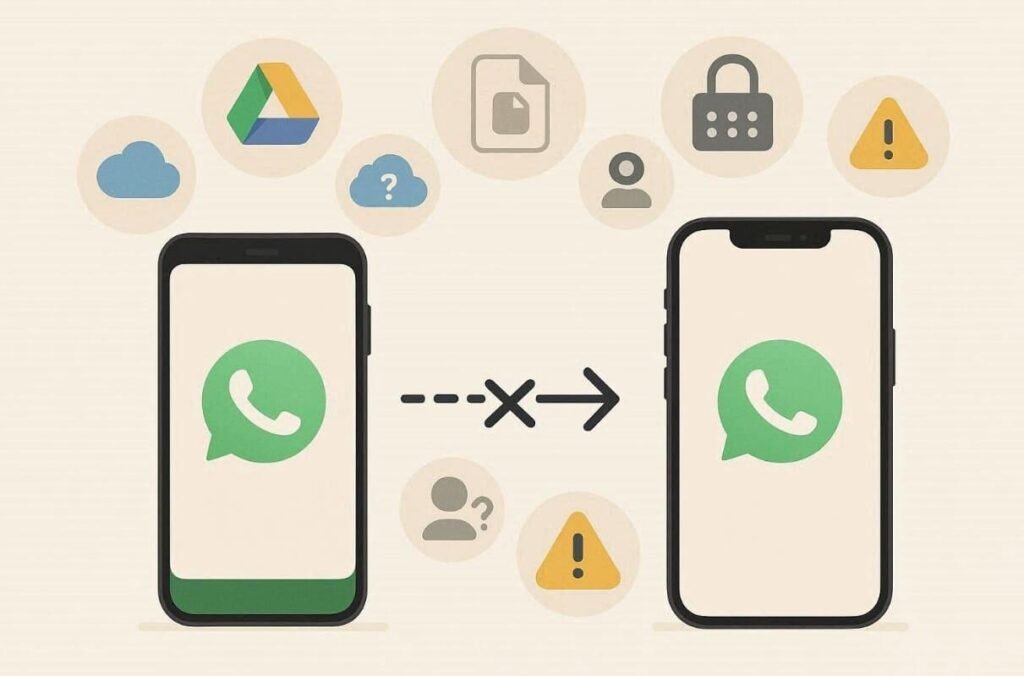
- Backup Formats: WhatsApp backups on Android cannot be read by iPhone systems. This format mismatch blocks automatic restoration during initial iPhone setup.
- Cloud Limits: Android uses Google Drive backups while iPhone relies on iCloud storage services. These separate clouds do not sync WhatsApp data across platforms ever.
- Number Verification: WhatsApp ties chats to phone numbers, making verification sensitive. Any change in the number timing can interrupt chat recognition during phone switches.
- Contact Mapping: Contacts saved differently cause chats to appear without names. So, users mistake this display issue for permanent message loss problems later.
- Permission Controls: iOS requires strict permissions that may block background data imports. You must allow access prompts exactly when requested by system alert screens.
Part 2: Why Unstable Contacts and Verification Break WhatsApp Chat Transfers
Many users face difficulty when chats disappear or even appear incomplete. This happens when contact lists or number verification remain unstable during setup. WhatsApp ties every message to a verified phone and a recognized contact identity. When these links break, the app cannot match chats with stored names. It may show message threads without labels, causing false assumptions of data loss.
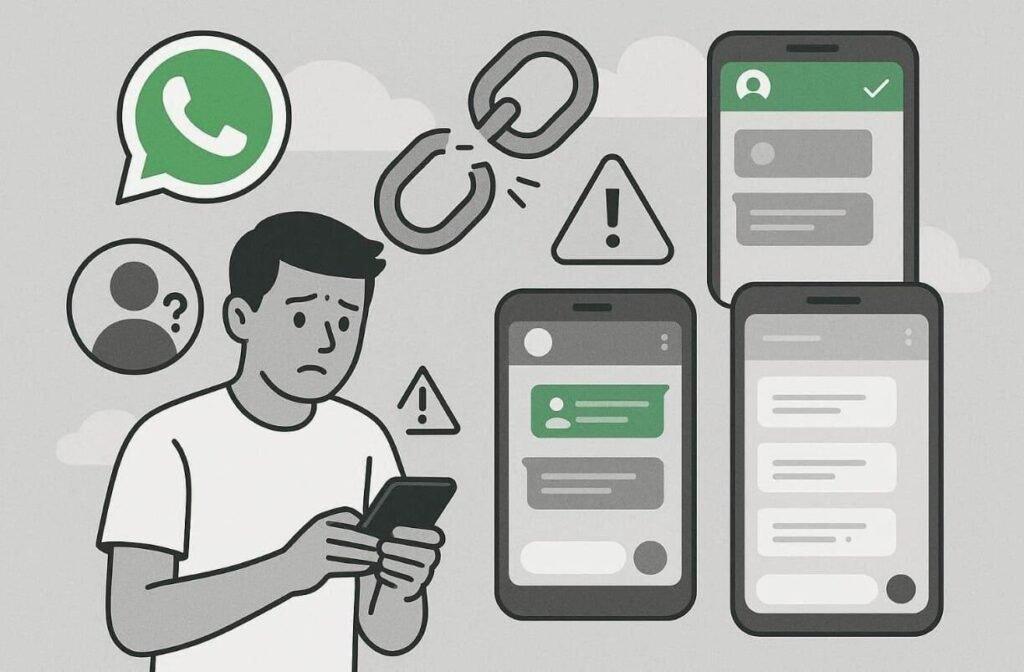
For a smooth move, identity mapping must stay consistent on both devices. Users should keep the same number verified and synced before initiating transfer steps. Moreover, avoid deleting or editing contacts during the migration process to reduce mismatches. Such unstable activity can mislead WhatsApp into treating old chats as foreign files. Plus, understanding this helps explain how to migrate WhatsApp messages from Android to iPhone.
Part 3: Android to iPhone WhatsApp Transfer: Complete Preparation Checklist
Moving WhatsApp between phones works best with careful preparation first. Many users face incomplete transfers because they skip essential setup or permission steps. Before you transfer data to new phone, simple checks prevent partial results. So, let’s review key steps that guarantee a complete and smooth migration:
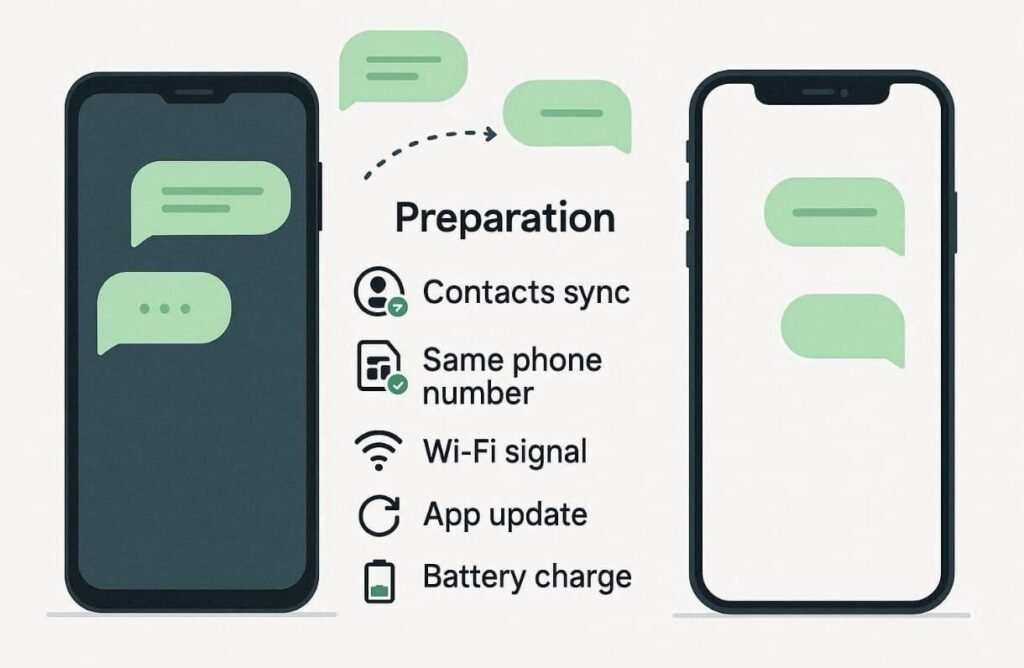
- Contact Sync: Sync contacts on Android and iPhone before opening WhatsApp during setup. Missing contacts causes chats to display numbers instead of names after transfer.
- Stable Number: Use the same phone number on both devices during the entire transfer. Changing numbers early can break chat links and stop restoration afterward.
- Stable Internet: Use a reliable Wi-Fi connection for downloading and restoring data. Weak connections cause errors or even incomplete media transfers during setup.
- App Update: Ensure both devices have the latest WhatsApp version installed. Updated apps fix bugs and improve compatibility for smoother chat migration.
- Battery Power: Charge both phones to at least 70% to avoid sudden shutdowns during transfer. Low battery interruptions can corrupt progress and force restarting steps again later.
Part 4: Common WhatsApp Transfer Failures and Proven Fixes
Even with preparation, users still face errors during WhatsApp transfers between devices. These problems look serious, but usually have simple causes behind them. When you transfer WhatsApp to new phone, small mistakes can interrupt progress. The table below explains common failures and proven fixes without restarting everything:
| Common Issue | What Happens | Proven Fix |
| Chats Missing | Messages do not appear after transfer completion | Recheck number verification and reopen WhatsApp once setup finishes |
| Numbers Only | Chats show phone numbers instead of contact names | Sync contacts again and refresh WhatsApp permissions |
| Media Not Showing | Photos or videos appear blank or missing | Wait for the media download on a stable Wi-Fi connection |
| Transfer Stuck | Process freezes or stops midway | Keep phones unlocked and disable battery optimization |
| Verification Failed | WhatsApp cannot confirm your phone number | Ensure the SIM is active and retry verification |
| Permission Denied | WhatsApp blocks data access during migration | Allow all requested permissions when prompted by the system |
| App Crash | WhatsApp closes during setup | Update WhatsApp and restart both devices once |
Part 5: Using Dr.Fone – WhatsApp Transfer for a Guided Android to iPhone Switch
Switching WhatsApp between Android and iPhone can feel risky without proper guidance. Many users worry about lost chats or incomplete restoration during migration. This is where Dr.Fone – WhatsApp Transfer becomes essential for smooth transfers. It supports Android 16 and iOS 26 for cross-platform WhatsApp migration. Dr.Fone also transfers or restores both WhatsApp and WhatsApp Business conversations.
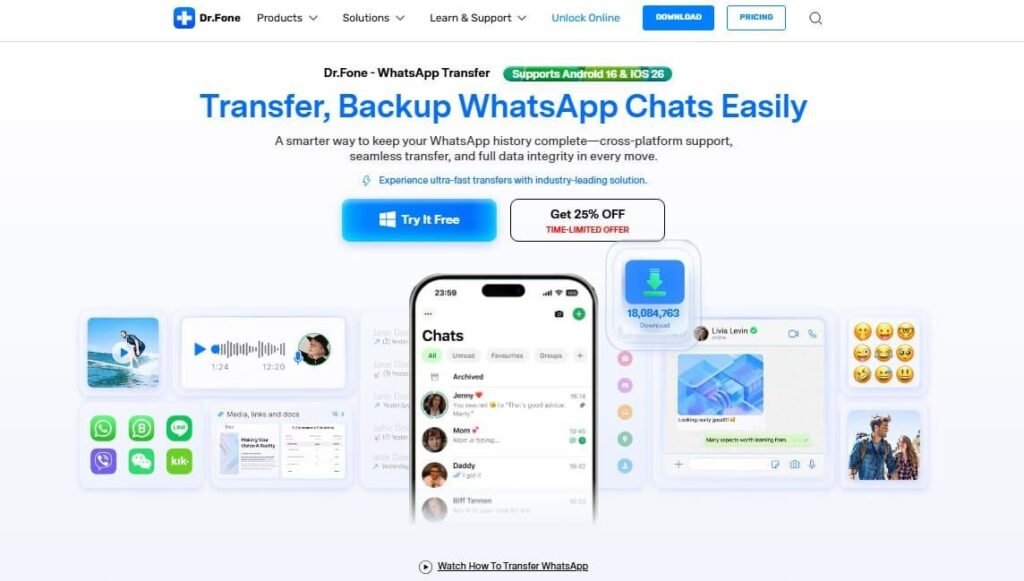
The tool keeps 100% data integrity while offering ultra-fast transfer performance. Alongside that, Dr.Fone – Phone Transfer allows moving all phone data. It enables you to move up to 16 file types, including calendar and voice memos. Users can also select specific file categories for efficient and faster data migration. Plus, Dr.Fone toolbox even offers entire migrations that finish within 30 minutes.
Key Features
- Multi-App Support: Transfers Viber and Kik app data alongside WhatsApp’s data.
- Merge History: Merges new and existing WhatsApp data on the target phone.
- No Cloud Requirement: Works without relying on Google Drive or iCloud backup compatibility.
Detailed Manual to Transfer WhatsApp Between Phones via Dr.Fone
You need to go through the given steps to transfer WhatsApp to a new phone with the help of Dr.Fone:
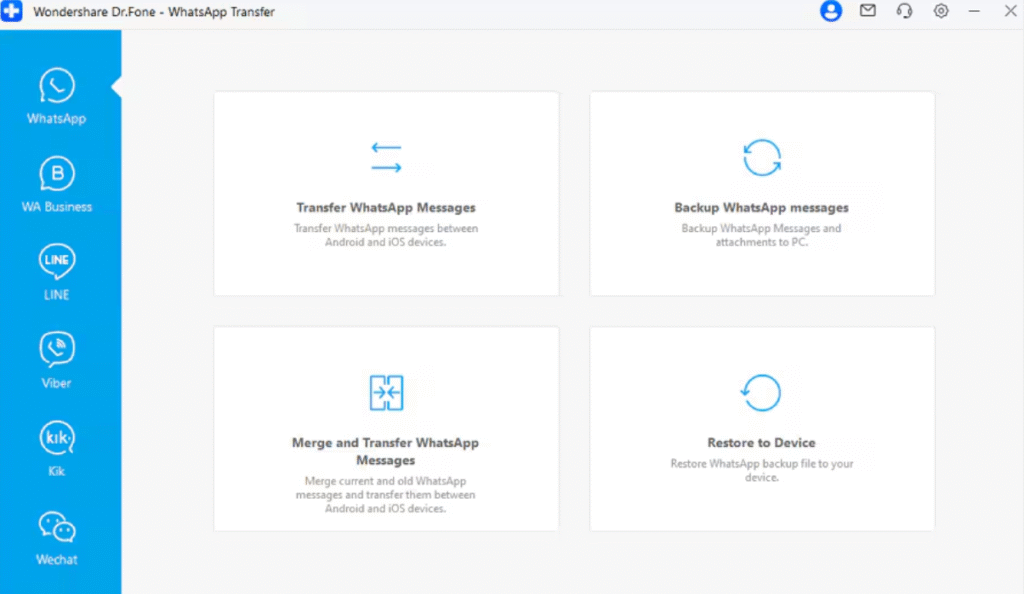
Step 1. Access the Tool’s WhatsApp Transfer
Head to the “Toolbox” tab upon launching Dr.Fone and select “WhatsApp Transfer.” Connect both phones and click “Transfer WhatsApp Messages” to begin.
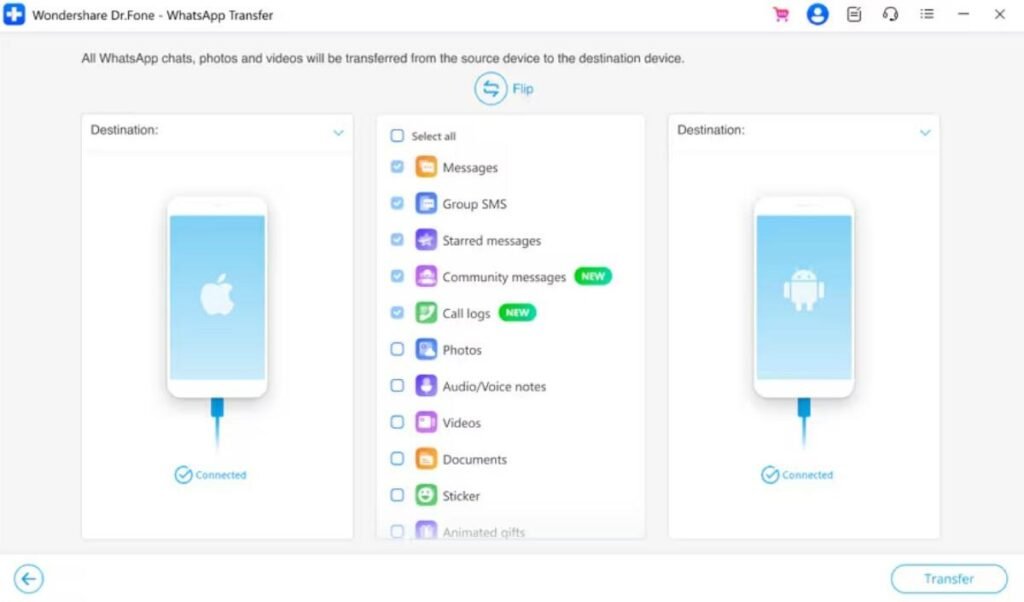
Step 2. Pick the WhatsApp Data to Move
Browse the displayed WhatsApp data types, select the items you want to migrate, and press “Transfer.”
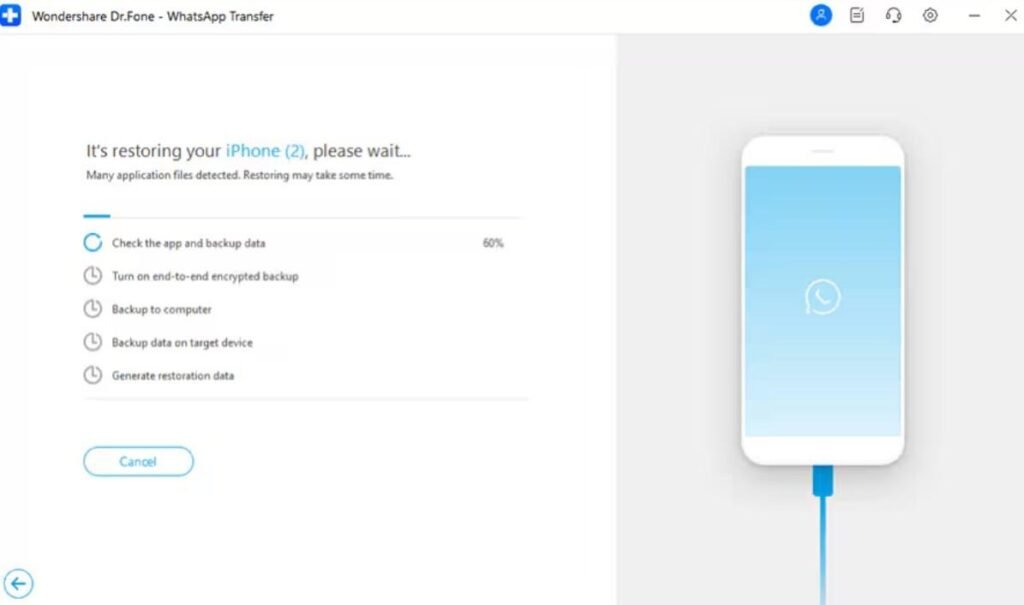
Step 3. Begin Moving WhatsApp Data
Take guidance from the displayed prompts to initiate transferring WhatsApp to your iPhone.
Step-by-Step Guide to Move Phone Data Using Dr.Fone
Navigate to the following guide to transfer data to a new phone via the Phone Transfer feature of Dr.Fone:
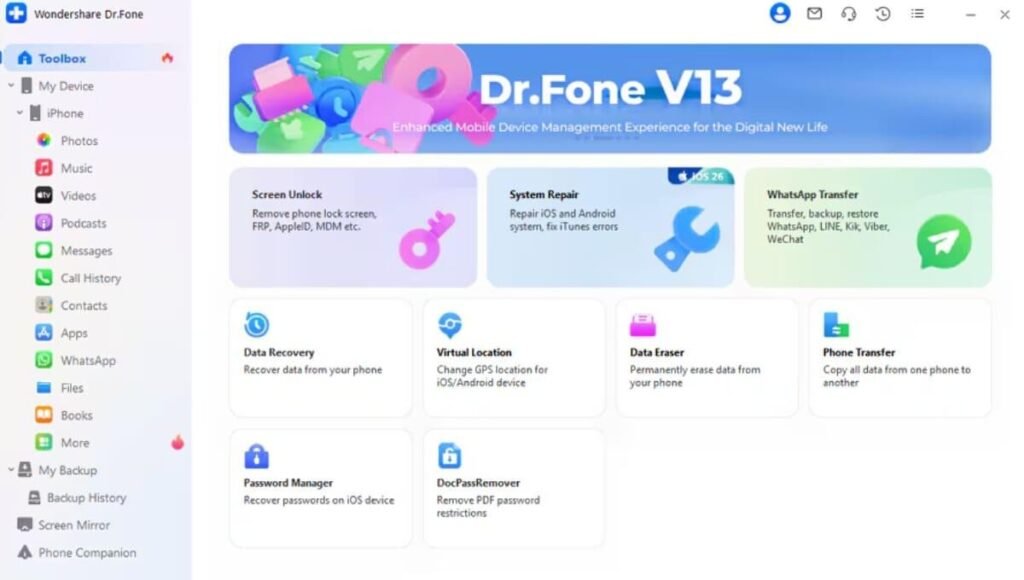
Step 1. Launch the Phone Transfer Tool
Select the “Phone Transfer” feature and link both your phones to the computer via USB cables.
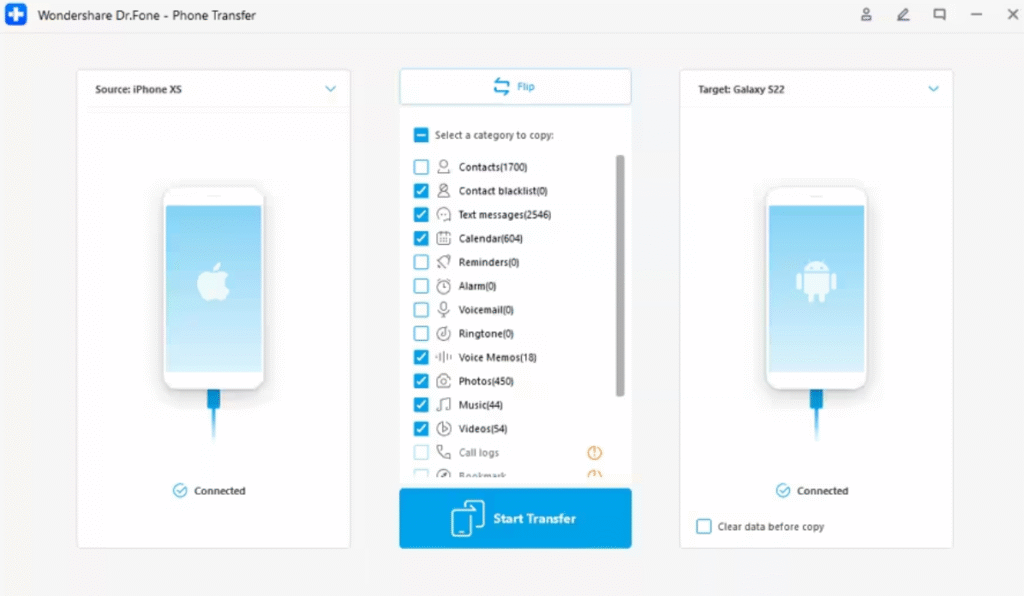
Step 2. Choose the Phone Data to Move
After the devices are recognized, pick the data types you want to transfer and opt for “Transfer.”
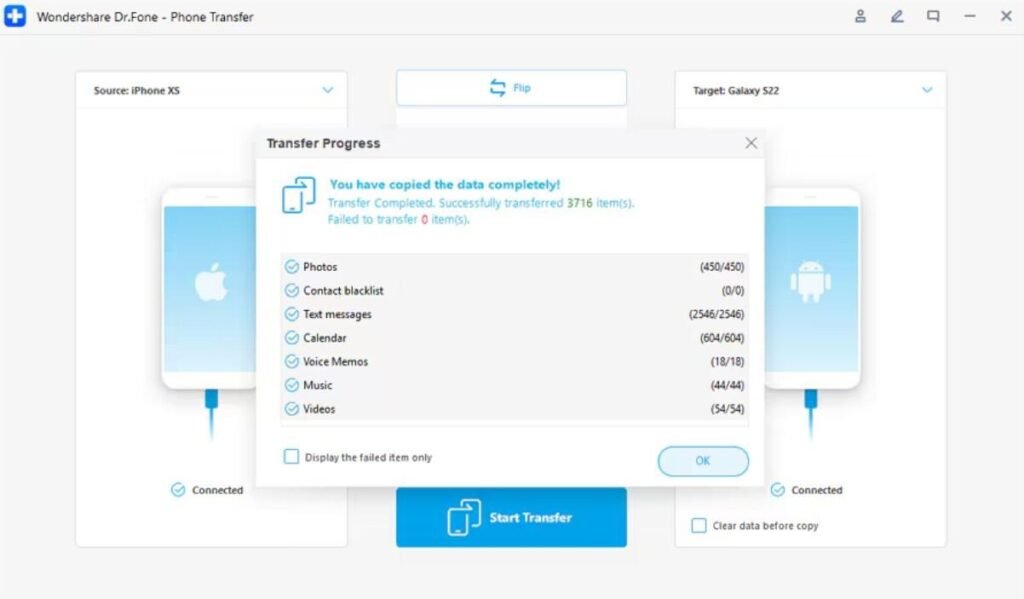
Step 3. Complete Phone Transferring Process
The software will then begin migrating data once you follow the displayed guide.
Conclusion
To sum up, transferring WhatsApp from Android to iPhone can feel confusing. Most issues happen because of unstable contacts or incomplete backups. Yet, proper preparation, like syncing contacts and updating apps, prevents failed transfers. Following the right steps ensures messages, media, and call history remain intact. Apart from that, for a safe and smooth WhatsApp move without mistakes, use Dr.Fone – WhatsApp Transfer now.
